Bolt 2 graphics card help!Post Date: 2018-07-26 |
Post Reply 
|
| Author | |
Ceocyn 
Newbie 

Joined: 14 Feb 2014 Online Status: Offline Posts: 6 |
 Quote Reply Quote Reply
 Topic: Bolt 2 graphics card help! Topic: Bolt 2 graphics card help!Posted: 26 Jul 2018 at 1:03pm |
|
So I was cleaning the dust out of my bolt 2 and now the monitor won’t work. I have tried everything I can think of to fix it short of trying to reseat the graphics card, because I have zero experience with actually messing around in my computer’s guts. But now I have nothing else to try except take the card out and put it back in, and on this system I have no idea how to do it. I found another guide for this on these forums but it was not helpful. I am very dumb and out of my depth. Please help.
|
|
 |
|
|
Ceocyn
Newbie
Joined: 14 Feb 2014 Online Status: Offline Posts: 6 |
Quote Reply
Posted: 26 Jul 2018 at 1:08pm |
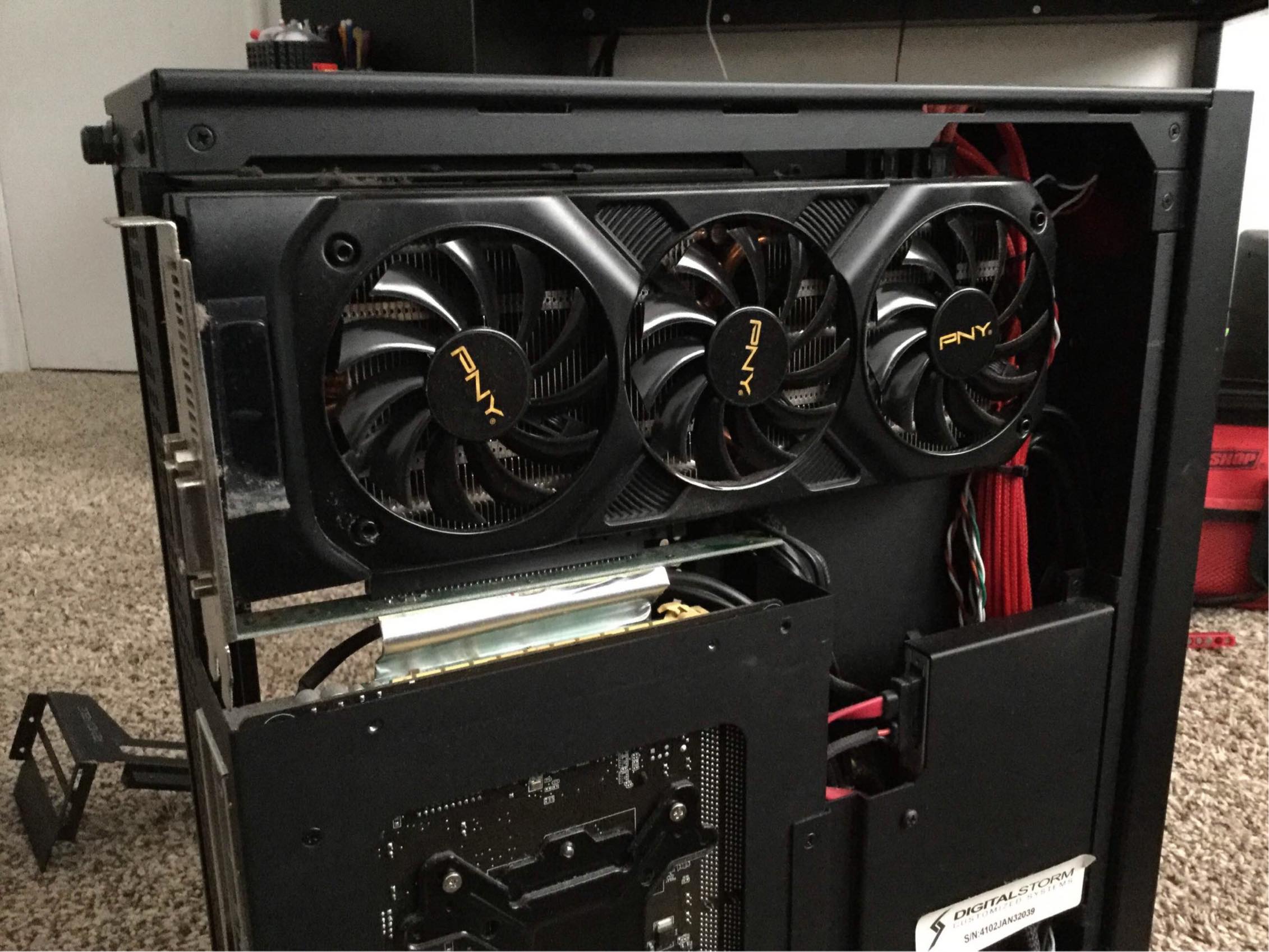
This is as far as I have gotten |
|
|
|
|
bprat22
DS ELITE 
DigitalStorm East -- (Unofficially!)
Joined: 08 Jun 2011 Online Status: Offline Posts: 20391 |
Quote Reply
Posted: 26 Jul 2018 at 1:25pm |
|
Make sure you’re plugging the monitor into the graphics card and not motherboard.
After that, it’s possible cleaning it generated a spark that blew something. The white ribbon cable you see below the graphics card.....it’s called a riser cable....unplug it on both ends, the mobo and graphics end and reseat it with power off and pc unplugged. Let us know. 
|
|
|
|
|
Ceocyn
Newbie
Joined: 14 Feb 2014 Online Status: Offline Posts: 6 |
Quote Reply
Posted: 27 Jul 2018 at 11:33am |
|
Just tried unplugging/replugging that strip on both ends, no dice.
The computer starts fine, I think. The fans all start spinning when I turn it on, but the monitor gets no signal. I know the monitor is plugged into the correct port. I have tried replacing the dvi cable with an hdmi (I made sure to adjust the input settings on the monitor when I did this) and that didn’t work either. Should I bother going to get a replacement dvi cable to see if that would work? This is why I waited so long to clean my computer 
|
|
|
|
|
bprat22
DS ELITE
DigitalStorm East -- (Unofficially!)
Joined: 08 Jun 2011 Online Status: Offline Posts: 20391 |
Quote Reply
Posted: 27 Jul 2018 at 11:51am |
|
Try plugging the monitor into the motherboard integrated graphics port, with one end of the video card unplugged from the cable. There should be a dvi and hdmi port on the motherboard, depending on the board.
This will check to see if it’s just the video card or something on the motherboard itself. Also try unplugging the pc and holding in the power on button for several seconds to discharge the mobo. |
|
|
|
|
Ceocyn
Newbie
Joined: 14 Feb 2014 Online Status: Offline Posts: 6 |
Quote Reply
Posted: 27 Jul 2018 at 12:10pm |
|
I held down the power button and that seemed to work! But I got this message on the monitor:
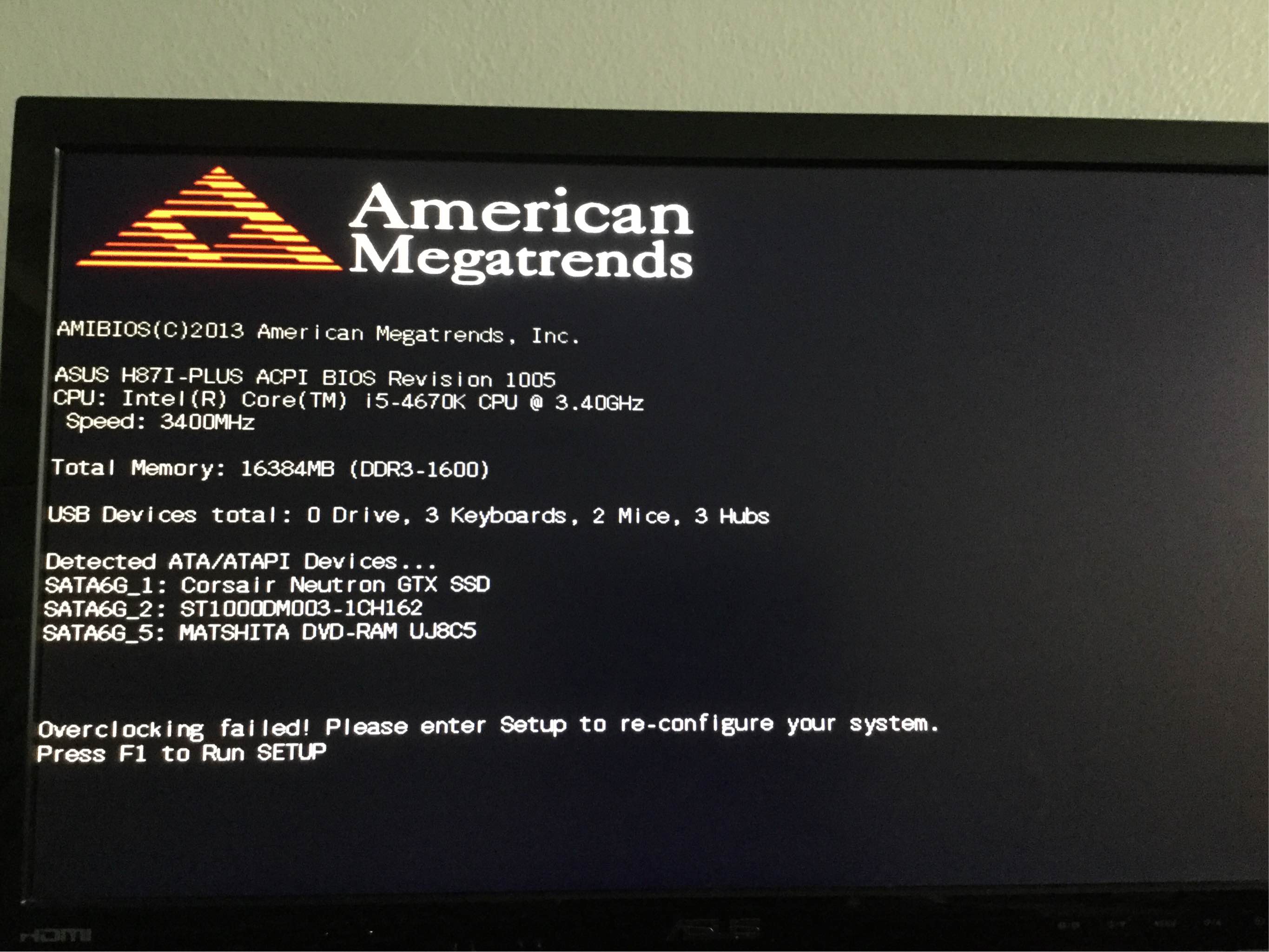
Is this something I need to worry about? Or can I just do what it says? |
|
|
|
|
bprat22
DS ELITE
DigitalStorm East -- (Unofficially!)
Joined: 08 Jun 2011 Online Status: Offline Posts: 20391 |
Quote Reply
Posted: 27 Jul 2018 at 12:23pm |
|
My guess is your cleaning did generate some static that discharging the mobo helped fix. Nice job fixing the issue.
The static probably messed with your mobo Bios. I don’t think that mobo is overclockable , but not sure. Follow the screen to get into Bios and then save and exit, That should do it. Sometimes DS does save any configurations they did with the mobo under profile, usually under the Tools tab. If you have to, go to the Bios saved profiles and load the latest, then save, exit.
|
|
|
|
|
Ceocyn
Newbie
Joined: 14 Feb 2014 Online Status: Offline Posts: 6 |
Quote Reply
Posted: 27 Jul 2018 at 12:50pm |
|
Everything is up and running again! Thank you so much for the help.
Not sure what I'll do when it's time to upgrade the graphics card since I couldn't figure out how to take the old one out properly, but that is a problem for another day lol |
|
|
|
|
bprat22
DS ELITE
DigitalStorm East -- (Unofficially!)
Joined: 08 Jun 2011 Online Status: Offline Posts: 20391 |
Quote Reply
Posted: 27 Jul 2018 at 2:05pm |
 Nice. I love it when a plan comes together. Nice. I love it when a plan comes together. 
I can’t remember off hand how the graphics card comes out. I usually just keep removing things until I get there. Nice job and Enjoy. As far as cleaning....use just canned air in short bursts and no vacuum. Vacuuming can generate a lot of static. If you wipe it down, do it slow with you grounded. |
|
|
|
|
Cretae
DS Veteran 
Joined: 22 Mar 2010 Online Status: Offline Posts: 7331 |
Quote Reply
Posted: 27 Jul 2018 at 7:15pm |

|
|
|
|
|
Post Reply
|
| Forum Jump | Forum Permissions You cannot post new topics in this forum You cannot reply to topics in this forum You cannot delete your posts in this forum You cannot edit your posts in this forum You cannot create polls in this forum You cannot vote in polls in this forum |

About Digital Storm
Contact Information
Facility Tour
Financing
Buy Now, Pay Later
Downloads
GSA Schedule
Terms & Conditions
Privacy Policy
Request Help
Call: 1-866-817-8676
(Hours 9AM-5PM PST)





 Topic Options